

Thank you for purchasing the Time Marker/Alert Indicator for MT5, by Trading Heroes.
This Owner's Manual will give you everything you need to know about how to install, setup and use this indicator.
[toc]Purpose of the Time Marker / Alert Indicator for MT5
The Trading Heroes Time Marker/Alert Indicator marks your chart and can send alerts at times you specify. The alerts are optional and can be turned off. This can help you remember market open/close times and visualize those times in live trading and backtesting.
MetaTrader 5 charts use broker server times and do not allow you to change the timezone to one that's easy to remember.
That means you have to continually convert the broker server time to your local time or another time that's actually useful, like UTC.
If you day trade, that can get very confusing and can lead to losses quickly.
Remind You of Market Open/Close Times
It can be hard to remember when the Forex markets open and close, when you're traveling between timezones.
This indicator will display your chosen market times on your chart and send you reminders, so you don't forget to be at your computer before the market opens.
Mark Times During Backtesting
It can be hard to remember market open/close times when you're backtesting a day trading strategy.
This indicator makes it easy to see if you are executing your strategy at the correct times.
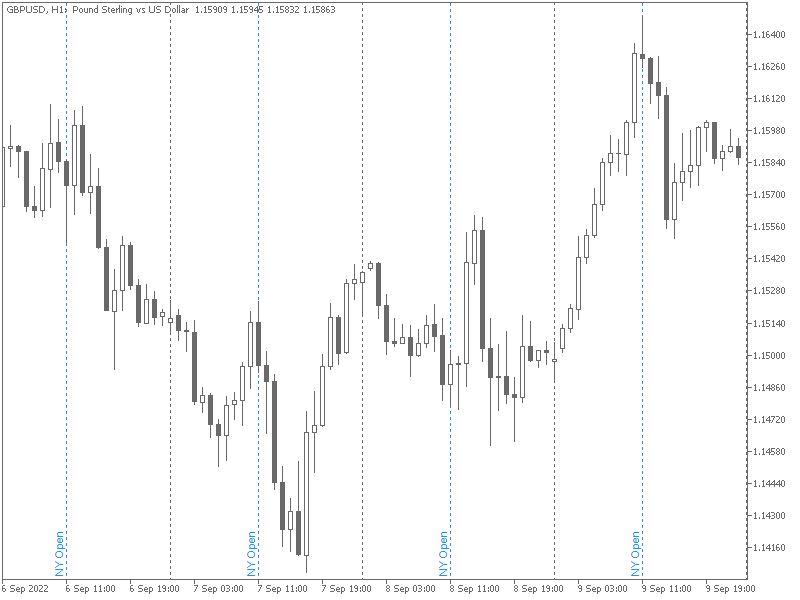
You can put a label on the indicator to show the time that you're marking.
For example, you could mark the New York open, like this.

Important Things to Remember About this Indicator
- It only works on the 1-hour timeframe and below. Any higher timeframe would create too many lines to be useful.
- Setup one separate chart for this indicator. If you use it on a chart that you actively trade on, it can create too many alerts when you change chart timeframes. So have a dedicated chart that you set aside for this indicator and it will work great.
- It can take a bit of time to draw, update and remove the lines for this indicator. This because the indicator is drawing all of the lines in the past and this can take a bit of time. You may not see much of a delay on a fast computer, but it can take some time on an older computer. Just be patient, there's really no way to speed it up. That's why it's good to use this indicator on a separate chart. Once the lines are on the chart, it's good to go.
How to Download the Time Marker / Alert Indicator for MT5
Instructions on how to download this indicator are here.
How to Install the Indicator
Installation instructions for MT5 indicators are here.
How to Setup the Time Marker / Alert Indicator for MT5
Once the indicator is added to the chart, the settings can be changed by going to the Inputs tab in the indicator settings.
To change the settings once the indicator has been added to a chart, right-click on the chart and select Indicator List. Then double click on the indicator to see the settings window.
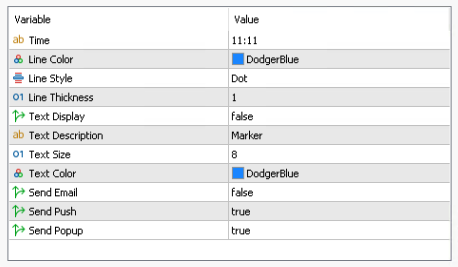

Here's an explanation of all the settings:
- Time: The time on the chart that you want to mark with a vertical line and/or get an alert. In 24-hour format.
- Line Color: Select the color of the vertical line.
- Line Style: Select the type of vertical line you want to use (solid, dash, dot, dashdot or dashdotdot).
- Line Thickness: Select how thick you want the line to be.
- Text Display: Do you want to display a text description on the line? True = yes, false = no.
- Text Color: Select the color of the text.
- Text Size: Select the size of the text.
- Send Email: Set to true to send an email alert. Your email notifications have to be set up before you can get emails. (false by default)
- Send Push: Set to true to send a mobile app push notification alert. Your push notifications have to be set up before you can get alerts and you have to have the MT5 mobile app installed on your phone. (true by default)
- Send Popup: Set to true to show a popup screen alert. (true by default)
You can add this indicator to the chart multiple times, but it's not recommended to add more than 3 instances to the same chart.
If you don't have this indicator yet, click this button to get it now…
Troubleshooting Guide
If you are having issues installing this indicator, see our MT5 Troubleshooting Guide.
The guide also has answers to frequently asked questions.
So be sure to read that guide before you contact support.
Your answer is probably already answered there.
Additional Support
If you have any other questions, contact support here.